

WordPress is one of the world’s most popular CMS and blogging platforms and like all content management systems, it is powered by a database. WordPress uses a MySQL database and PHP to interact between the database and the web browser.
Any site powered by a database may run faster or slower depending on the number of queries to the database each time the site is loaded, and how long these queries take.
Large databases can cause your website to run slower, particularly if the code used to query the database is not efficient. This is why your WordPress site may start to seem sluggish after time as more and more entries are added to the database, particularly if you’re installing lots of plugins that all add their own tables and additional database entries.
In order to keep your website running quickly and smoothly, like it was when you first installed WordPress, there are some database housekeeping tasks you can do on a regular basis to keep everything tidy and efficient.
1. Backup Your Current WordPress Database
Before carrying out any of the following steps, it’s important to back up your whole database. This is because accidental deletion or corruption of any important data in your WordPress database could mess up your whole site.
There are two main ways to do this:
A) Manually, using phpMyAdmin
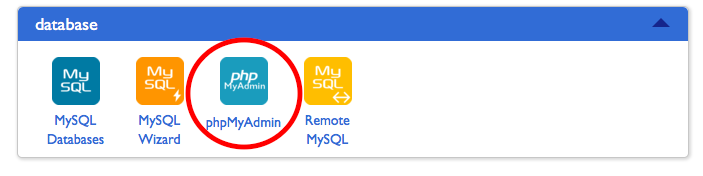
phpMyAdmin provides a visual interface to accessing and interacting with your database. You should find a link to it from the database section of your web-hosting dashboard:
Once you log into phpMyAdmin, you should see a screen like this:
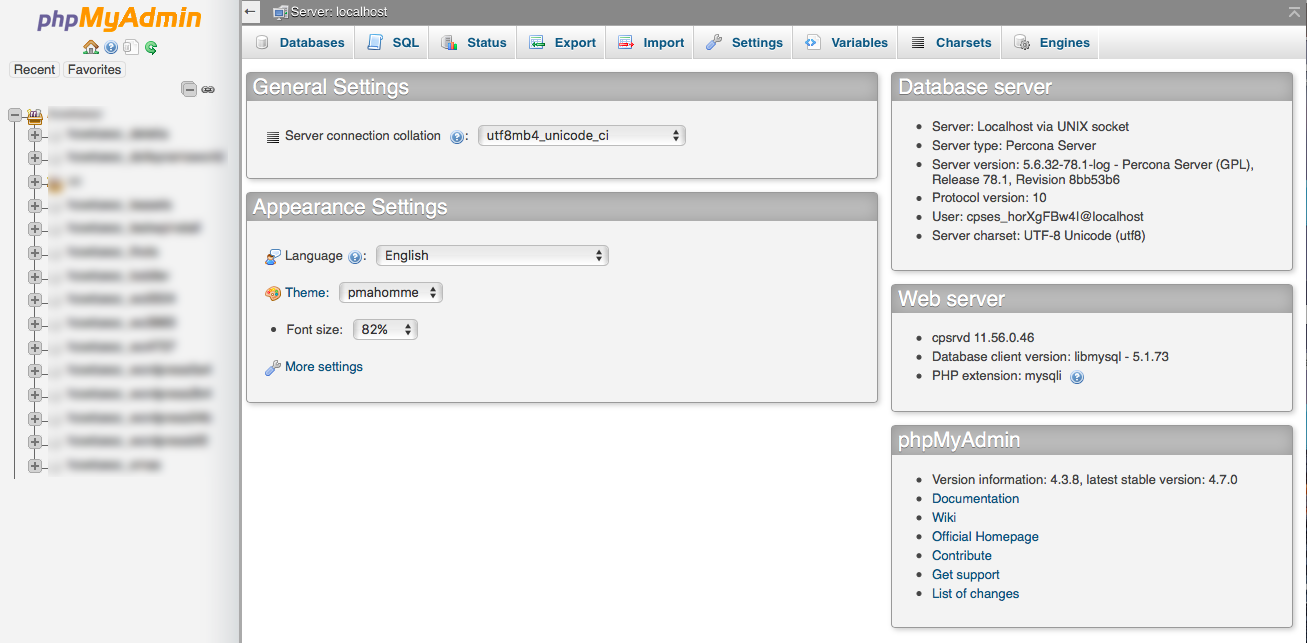
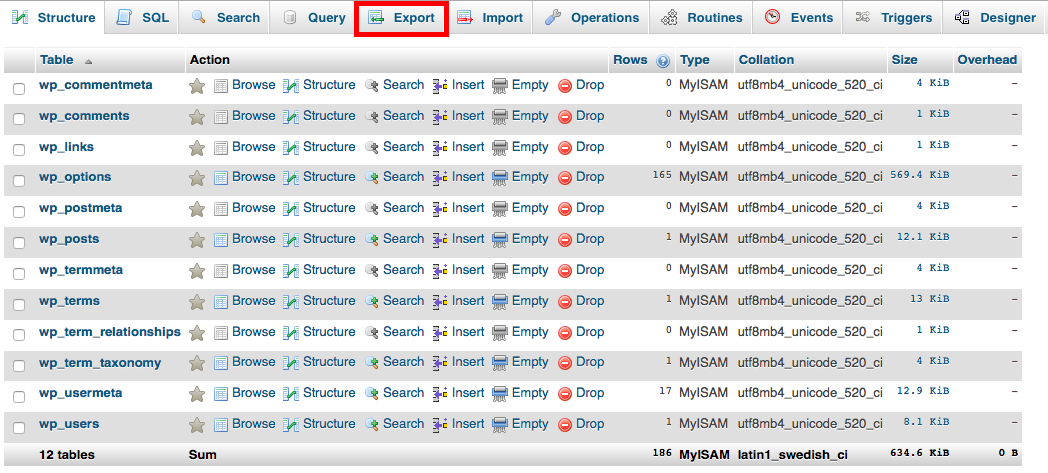
In the sidebar you should see a list of all your databases. Find the WordPress database for the site you want to optimize (you may have to check in your webhosting admin panel if you’re not sure of the name) and click on it. You should then see a screen with all the WordPress database tables listed.
From this screen, you need to click the “Export” tab from the top menu bar:
On the next screen, you need to select “custom” so you can customize the database export. Make sure all the tables are selected for export and choose “Save output to a file” :
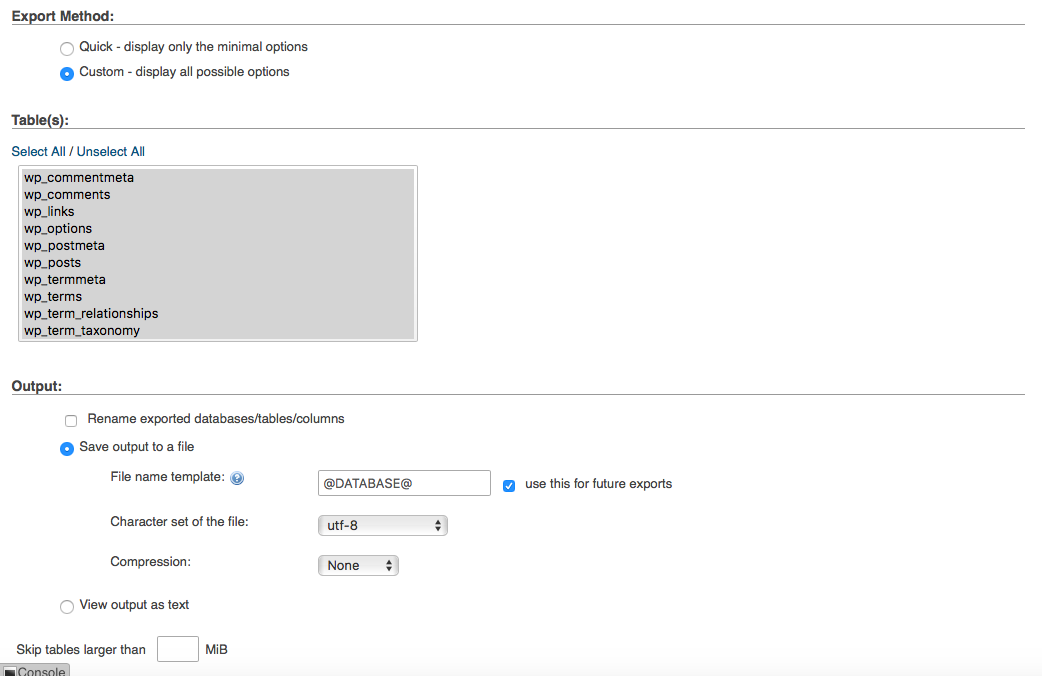
Other options to set:
- Choose “SQL” as the format
- Check “Add DROP TABLE”
- Check “IF NOT EXISTS”
Click the “Go” button and your whole database will then be exported as a file, which you can save to a secure backup location.
B) Using a Backup Plugin
There are several plugins that do all this for you if you don’t want to do it manually:
- 8 Best Backup WordPress Plugins Compared – 2017
- 12 Best Backup WordPress Plugins In Case You Get Into Trouble
2. Delete and Cleanup Unused Plugins
After you’ve backed up your database, it’s time to start doing some maintenance.
It’s a good idea to start with deleting any plugins you don’t use, and getting rid of the excess bloat they may have added to your WordPress database. Lots of people add plugins to test them out but then don’t delete them properly if they decide not to use them.
Go ahead and delete any non-active plugins from your WordPress dashboard and you should also deactivate and delete any plugins you don’t really use.
Unfortunately, most plugins don’t remove the database tables they added during installation when you delete them.
You can delete these tables manually using phpMyAdmin, however it’s easier to install another plugin that will do the work for you.
Plugins Garbage Collector is a WordPress plugin that will clean up the junk tables left when you delete plugins.
This scans your WordPress database and detects the tables that have been leftover from a deleted plugin (these are the entries in red in the screenshot below):
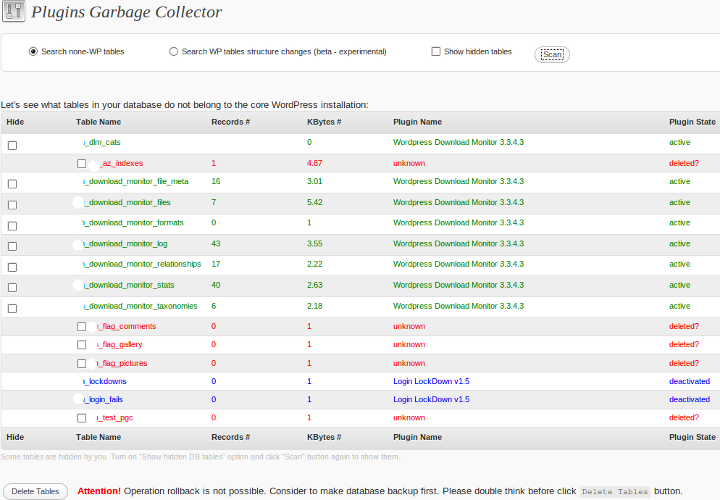
You can see information about these tables to see how much space they’re taking up in your database and delete them from the same screen.
3. Install WP-Optimize Plugin

All database optimization tasks can be done manually, but if something is a bit of a hassle and takes time to do, you probably won’t do it as regularly as you should. Database optimization is also not always easy, as you’ll have to manually identify data to be deleted and go through and do this table-by-table, using MySQL commands.
Using this plugin, on the other hand, is so easy, you can optimize your database on a weekly basis to keep your site free from junk and running smoothly.
Go ahead and download and activate the WP-Optimize Plugin.
There are several tasks that this plugin can handle for you that will help to optimize your WordPress database:
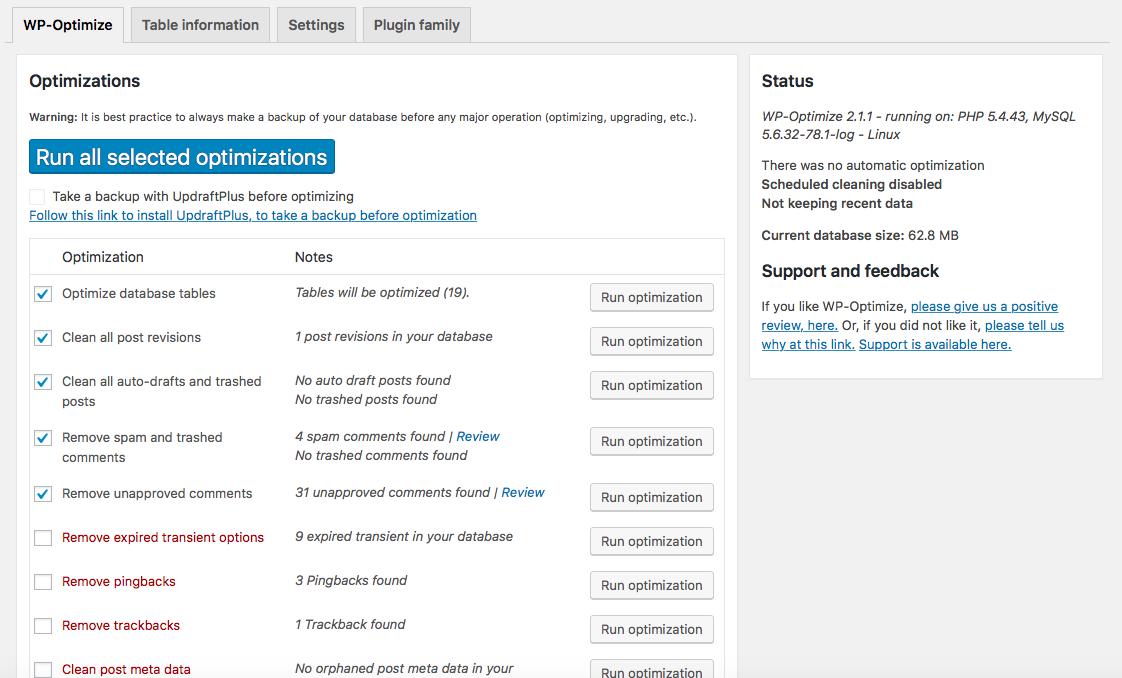
Optimize database tables
This runs a MySQL command to compact and defrag database tables and should be carried out regularly.
Clean all post revision
Every time you make a revision to a post in WordPress, a new record is inserted into the database. This makes it easy for you to revert to an earlier version of a post if you’ve made a mistake, but can add a lot of excess data to your database, that you’ll probably never need. This option cleans all post revisions from your database, deleting the excess records.
Clean all auto draft posts and posts in trash
Again, WordPress automatically saves drafts of posts as you’re writing to avoid losing your work in the event of a broken connection or other failure but you don’t need these drafts after publishing a post.
Posts that you’ve deleted are not actually deleted, but sent to trash where they stay for 30 days. The plugin will remove these posts from the database completely so they’re not taking up space anymore.
Remove spam comments and comments in trash
Another useless set of data that will be clogging up your database – remove spam and deleted comments to free up space
Remove unapproved comments
If you’ve not kept on top of your comments and have hundreds sitting in your database, or you suspect most of them are spam anyway, you can delete them easily.
Remove transient options
Temporary objects stored in your cache can also clutter up your database.
Remove pingbacks
Pingbacks are essentially junk comments that are created automatically when somebody links to your site
Remove trackbacks
Trackbacks are similar to pingbacks and can safely be deleted if you don’t want them clogging up your site.
Clean post meta data
Meta data includes information like the author and date when you create a new post. When you delete a post often this data is left as “orphaned” meta data and this can be deleted to free up space in your database.
Clean comment meta data
Similarly, this operation cleans orphaned meta data from comments that have been deleted.
Clean orphaned relationship data
This removes another type of unneeded orphan data from your database.
WP-Optimize also has several tabs running across the top:
Table information can be used to details about the size and number of records in each table in your database so you can identify any particularly bloated tables.
Settings allows you to run a scheduled auto cleanup of your database and keep recent data if you wish (for example you may wish to keep drafts and deleted items from the last 2 weeks).
3. Optimize Your WordPress Setup
Once you’ve cleaned up all this excess data you can stop it from being created again by changing a few of the settings within WordPress:
- Turn off trackbacks and pingbacks – if you don’t find these useful, you can turn them off in Settings > Discussion.
- Reduce your trash storage limit – you can reduce the space that deleted posts take up by reducing the trash storage time from the default 30 days. To do this, add the following line of code to your wp-config.php file, changing the number to the number of days you want to store trash: define( ‘EMPTY_TRASH_DAYS’, 10 );
- Turn of post revisions – if you never use this feature, you can turn it off and save a lot of excess records in the database. Add the following code to wp-config.php: define(‘WP_POST_REVISIONS’, FALSE);
4. Reduce Spam Comments
If your database is getting quickly clogged up with comment spam, you can use a plugin to automatically detect and delete spam comments.
Akismet is one of the most popular and effective comment spam plugins and it’s free, so there’s no reason not to be using it on your WordPress site.
You can also disable comments in older posts, which can help to reduce the amount of spam comments that hit your site. You’ll find this setting in the Discussion Settings page in your WordPress dashboard and you can set a number of days for automatically closing comments after a post is published.
5. Cache Your Database
Database caching caches the results of queries that are made to the database, which is quicker and puts less load on the server than constantly querying the database.
Most caching plugins include an option for database caching – W3 Total Cache and WP Rocket are two of the most popular and fully-functioned caching plugins.
Summing Up
If your site has been growing larger for several years and you’ve never done any database optimization, you should notice quite a performance boost after completing the above steps.
If your site is fairly new, you can make sure it stays running fast by making database optimization part of your normal site maintenance routine. You can use the scheduling function in WP-Optimize to make this even easier.
If you have any other database optimization tips and tricks or useful plugins, please share them in the comments below.
